
Please Note: Although there are multiple ways to connect the ViewBoard to your laptop, the district has only provided wires to connect view Touch and HDMI.
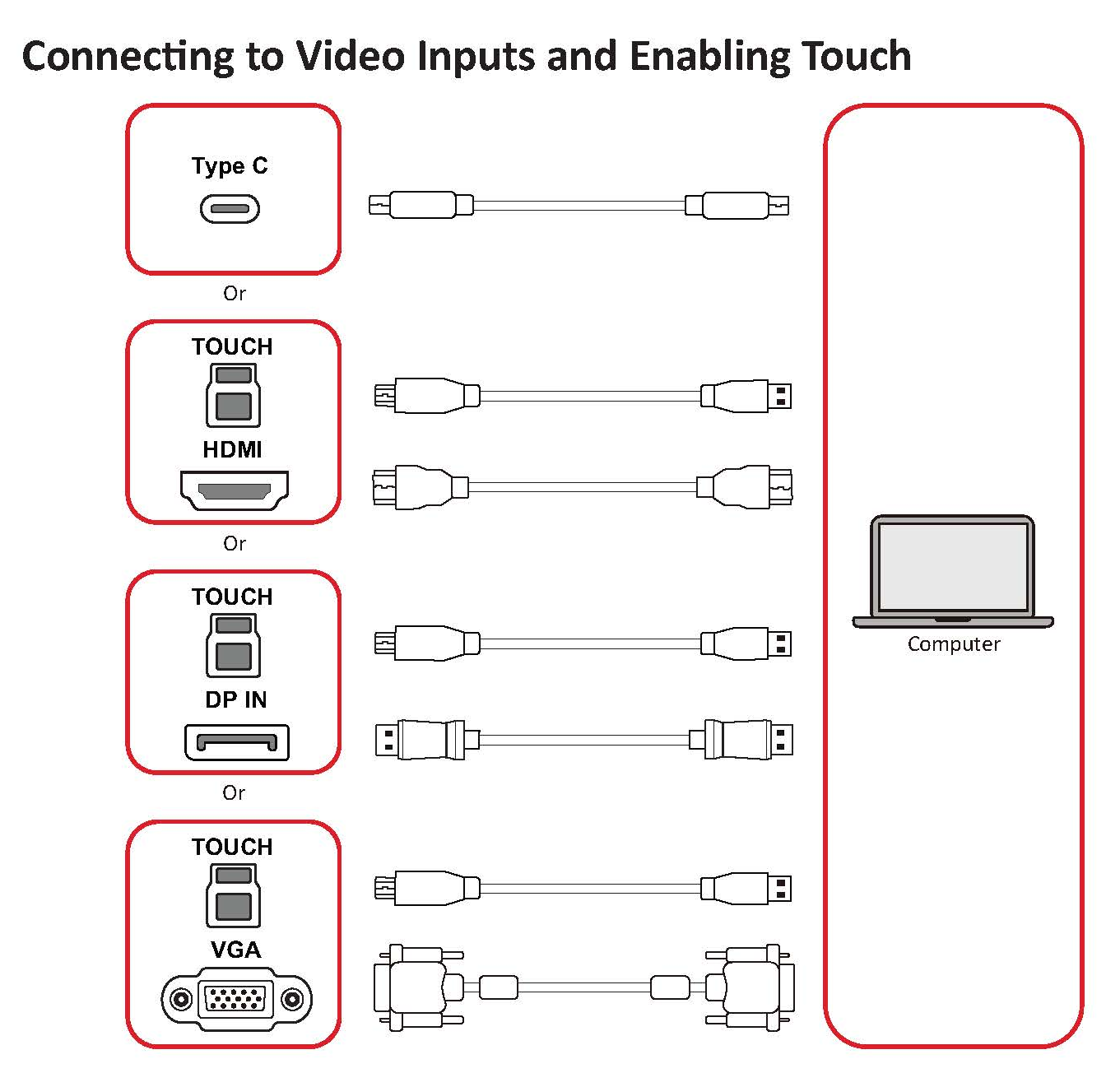
Connect the Touch Cable
1. To enable touch functionality, plug the USB touch cable into the Touch port on the side panel of the ViewBoard. Connect the USB end of the cable to an available USB port on your laptop.
Connect the HDMI Cable
2. Plug the HDMI cable into an available HDMI port on the side panel of the ViewBoard. Connect the other end of the cable to the HDMI port on your laptop.
Select the Correct Input Source
3. After connecting the HDMI cable, select the appropriate input source on the ViewBoard using the Source Input button on the control panel or on your remote control.
Once connected, your laptop screen should appear on the ViewBoard, allowing you to present and interact with content as needed.