1. Log into Schoology and click into one of your Schoology Courses.
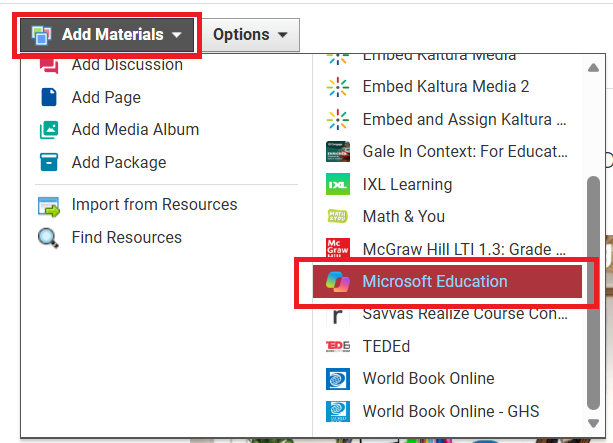
If this is the first time you are using Microsoft Education from your Schoology Course, you will need to sign into your Microsoft account. Click Sign in. Sign in using your Microsoft 365 log in (this log in should automatically be entered as soon as you click Sign in). It will then set up your Microsoft Education connection with this Section of your Schoology Course.
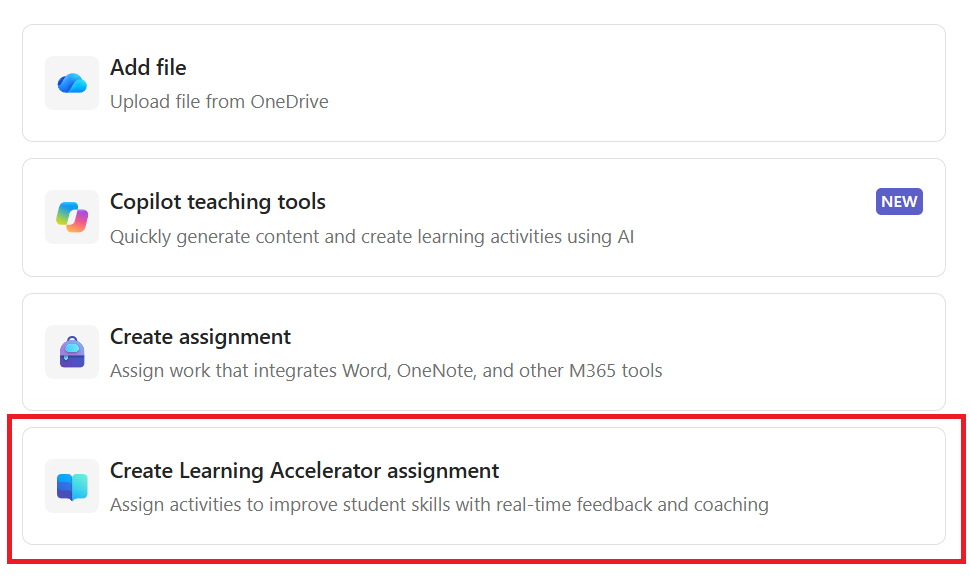
3. Click on Create Learning Accelerator assignment.
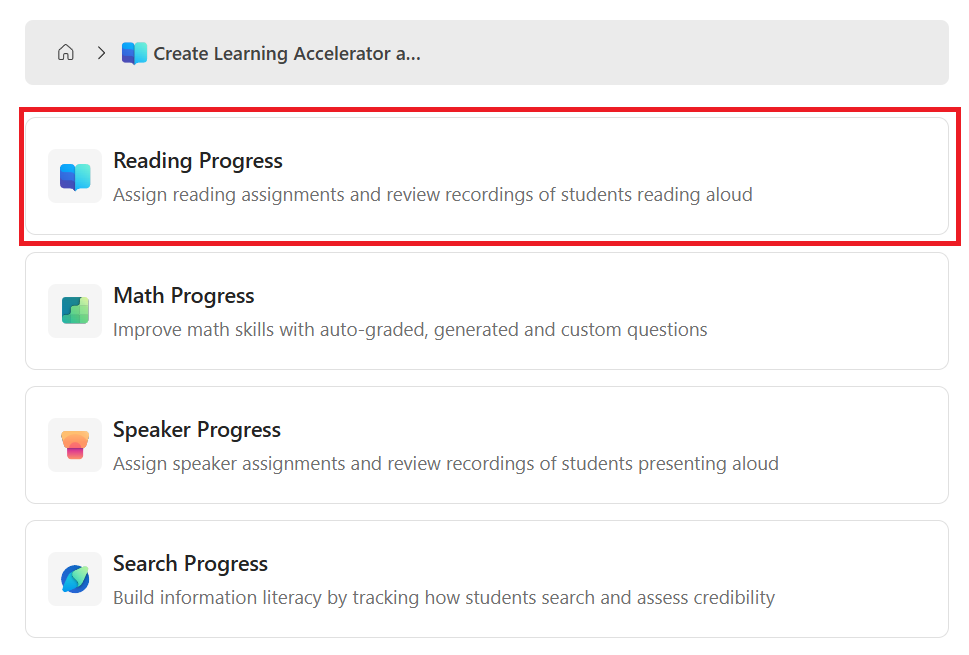
4. Click on Reading Progress.
5. Select Import Word or PDF, Generate Reading Passage, or Browse Sample Library.
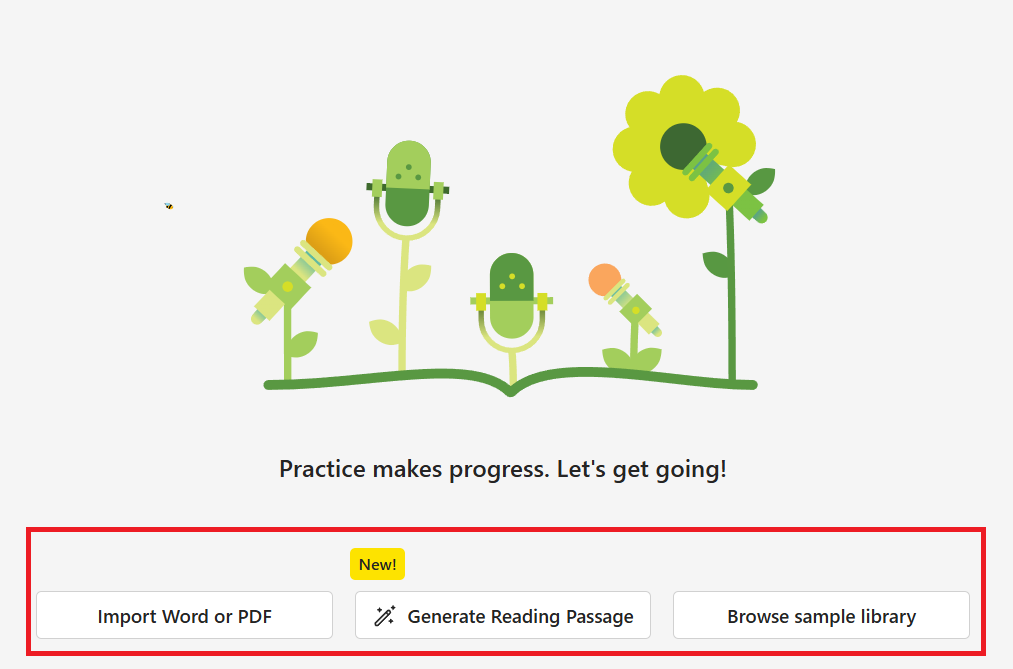
Import Word or PDF
Click Import Word or PDF, choose the location of the file you want to upload, and then select the Word or PDF file.
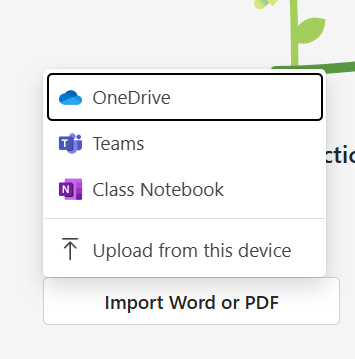
Follow the steps listed below under generating or selecting a passage for how to review its content, add comprehension questions, and finalize the assignment.
Generate Reading Passage
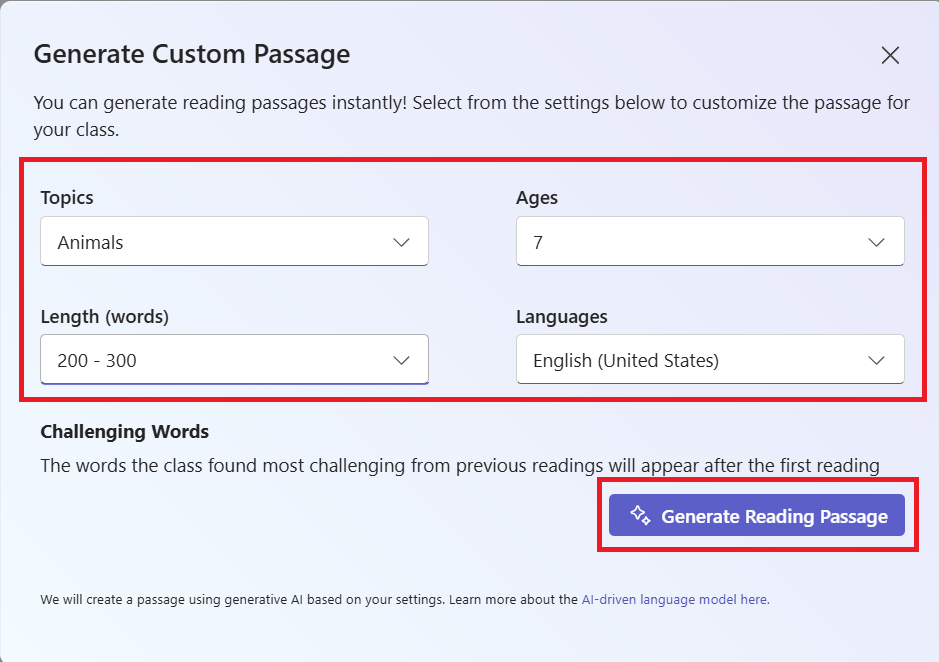
Use the drop-down menus to select the desired topic, age range, passage length, and language, then click Generate Reading Passage to create the reading selection.
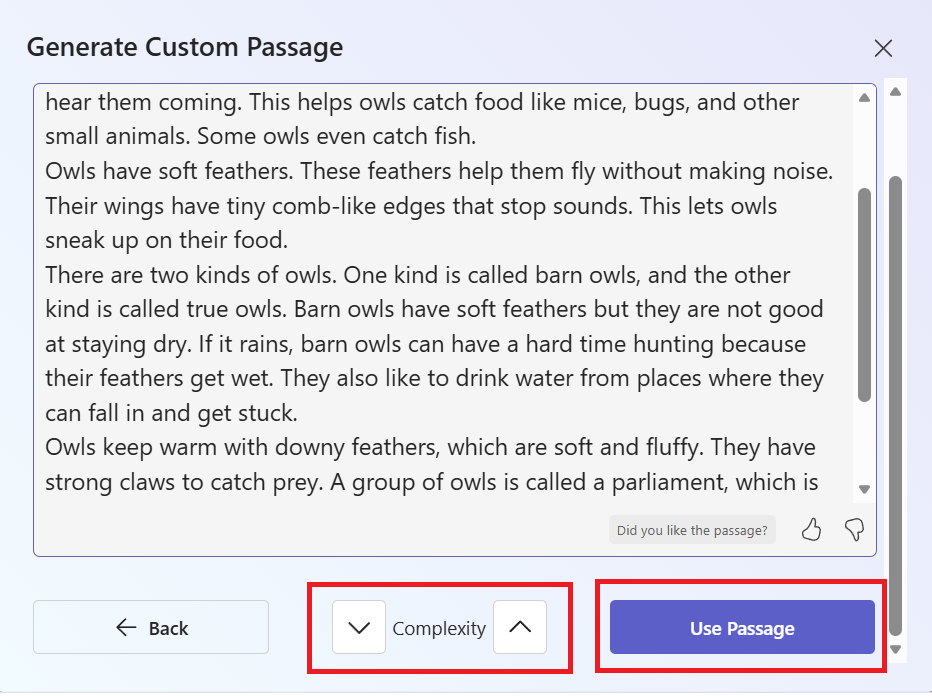
Review the generated passage and make any necessary edits to ensure it is accurate, appropriate, and aligned with your students' needs. Use the Complexity arrows to increase or decrease the difficulty level of the text. When you are satisfied with the passage, click Use Passage.
Review the detail of the story and the settings on the right-hand side.
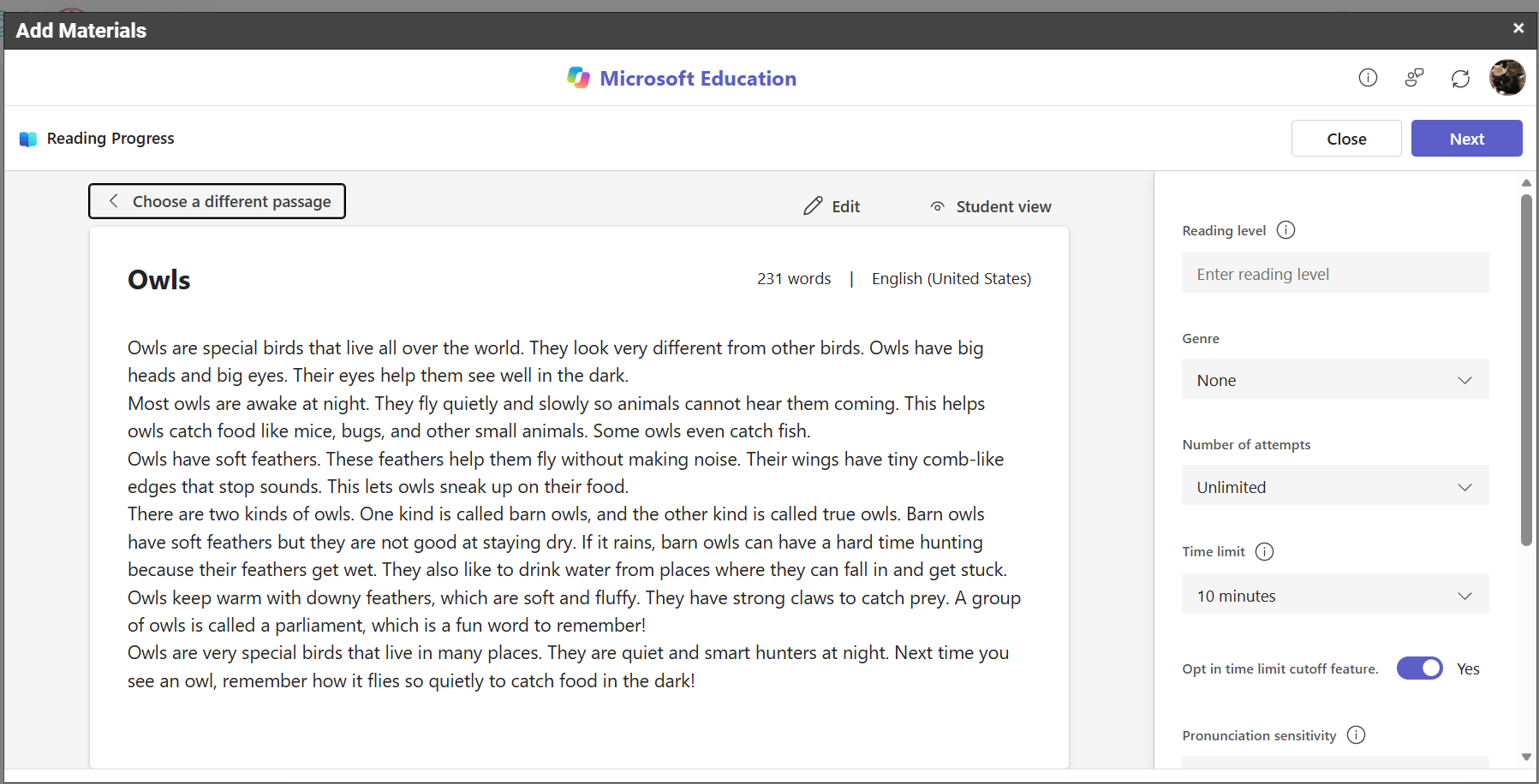
Scroll down to view all available settings. To include reading comprehension questions, switch this option to Yes. A new window will open, allowing you to choose whether the questions should be generated automatically or created manually. Then add the number of questions you want and click Next.
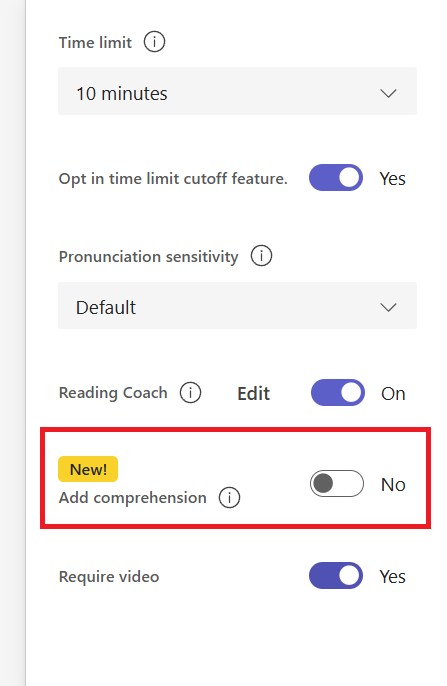
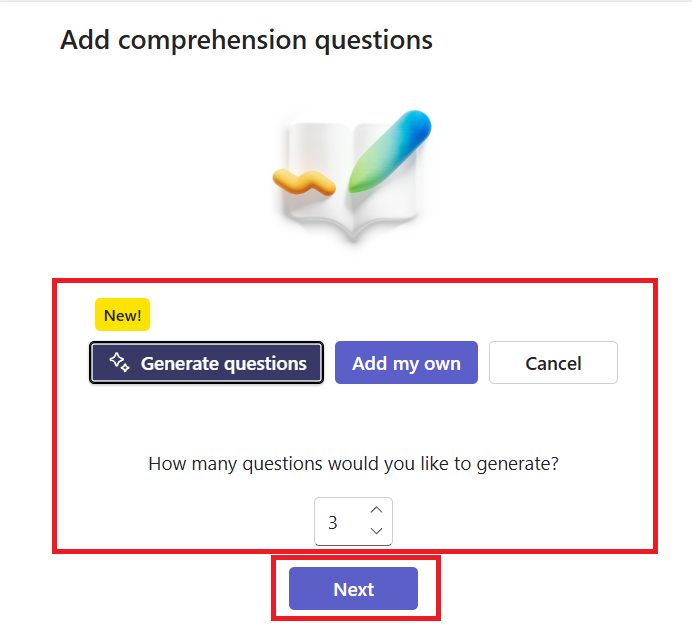
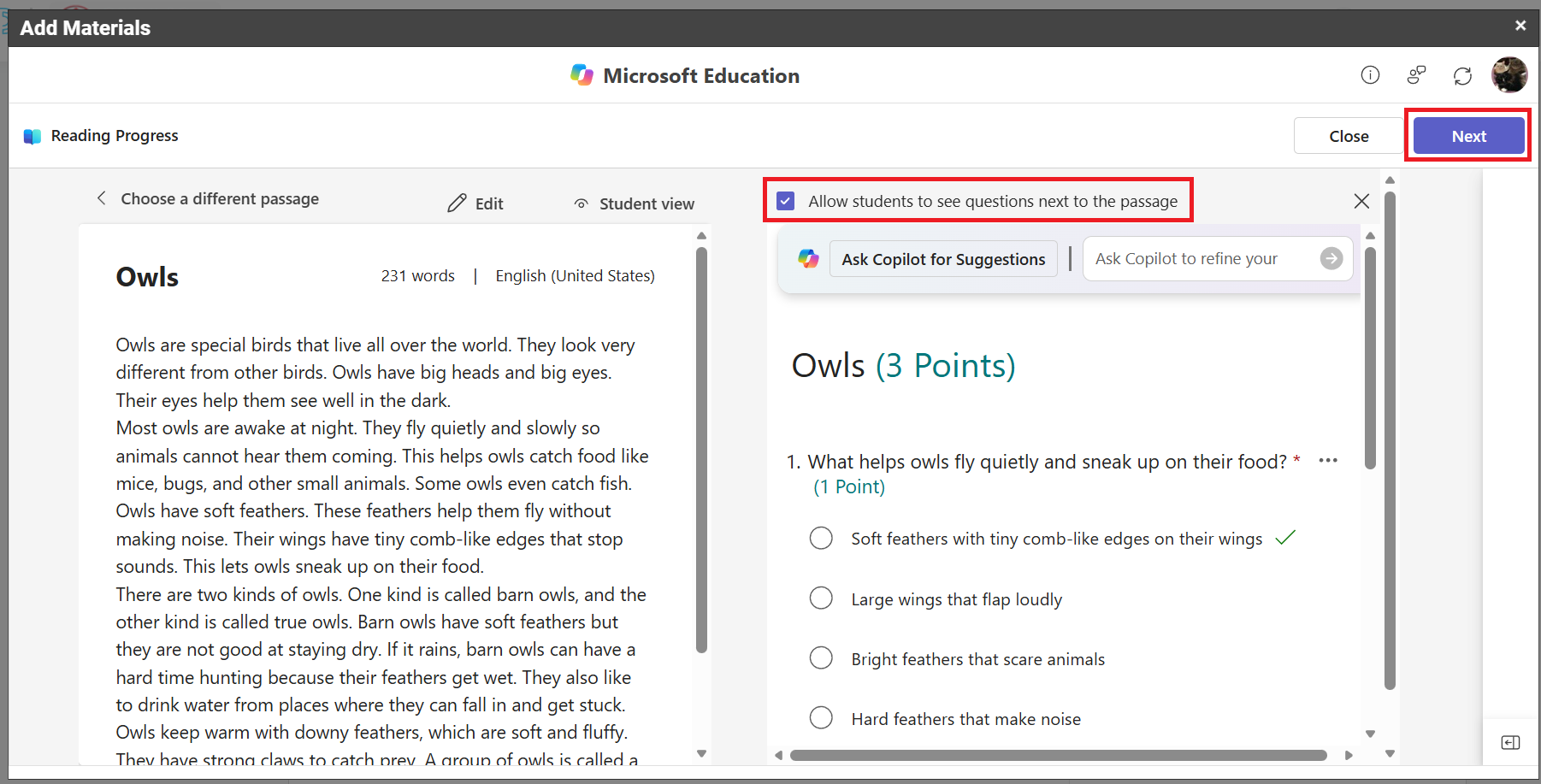
If you choose to create your own questions, a quiz template will be provided for you to enter them. To display the questions alongside the reading passage for students, select the corresponding check box.
Review the generated questions and make any necessary adjustments to ensure they are accurate and appropriate for your students. To display the questions alongside the reading passage for students, select the corresponding check box. When you are satisfied with the questions, click Next.
On the next screen, enter a title for your assignment, instructions for the students, a Due Date, and a number of points (this is a required field). Then click Save.
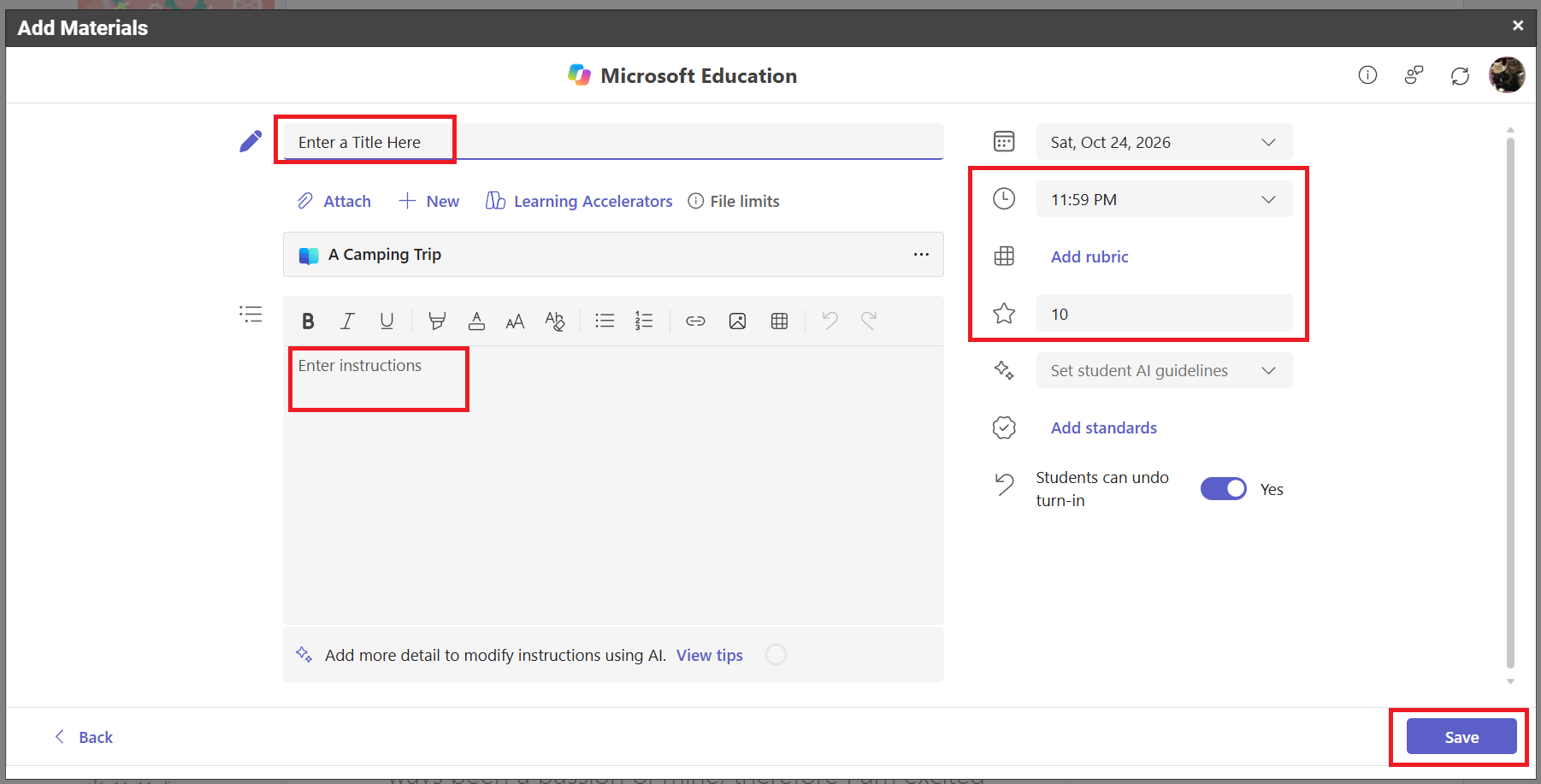
The assignment will now appear in your Schoology Course.

Browse Sample Library
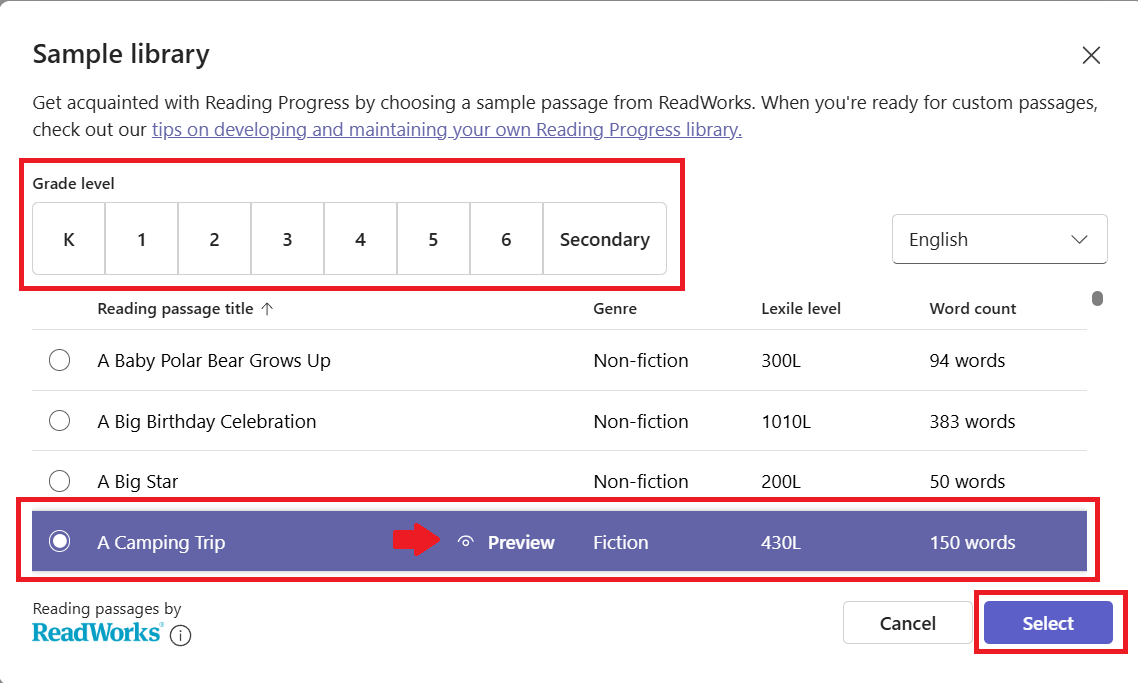
Select a Grade Level and then select a passage. If you want to preview it first, click on the title and then click Preview. Once you have selected a title, click Select.
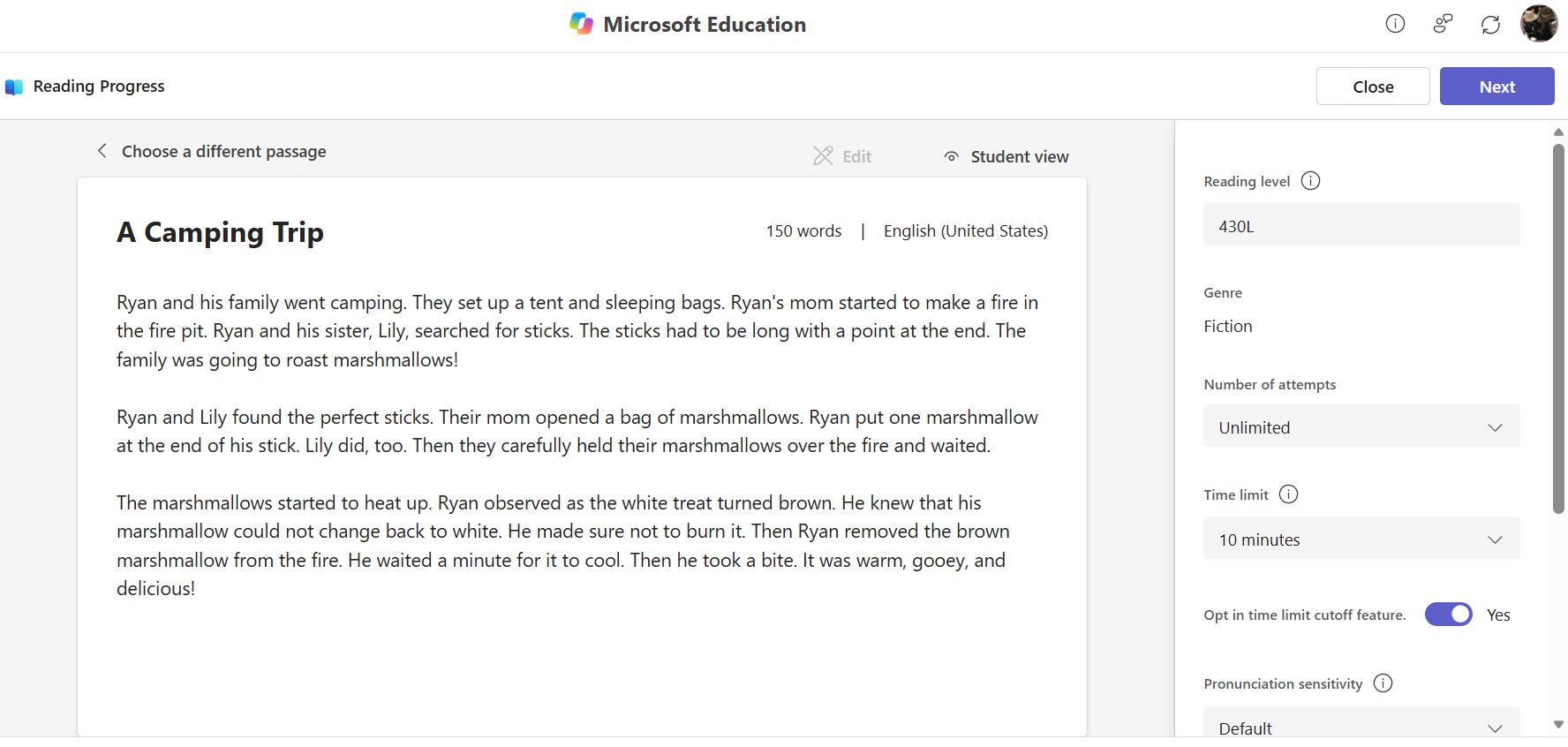
Review the detail of the story and the settings on the right-hand side.
Scroll down to view all available settings. To include reading comprehension questions, switch this option to Yes. A new window will open, allowing you to choose whether the questions should be generated automatically or created manually. Then add the number of questions you want and click Next.
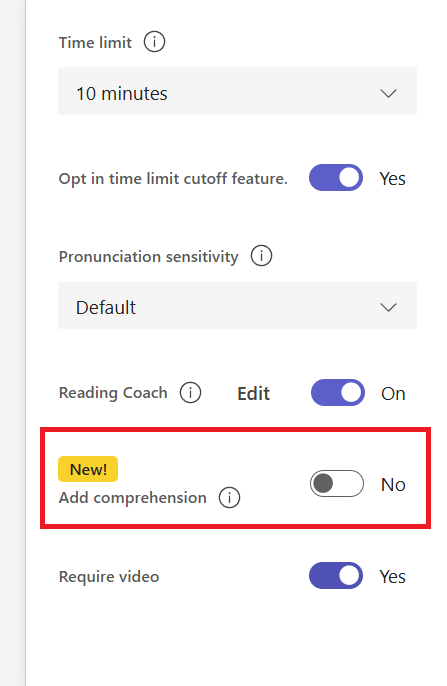
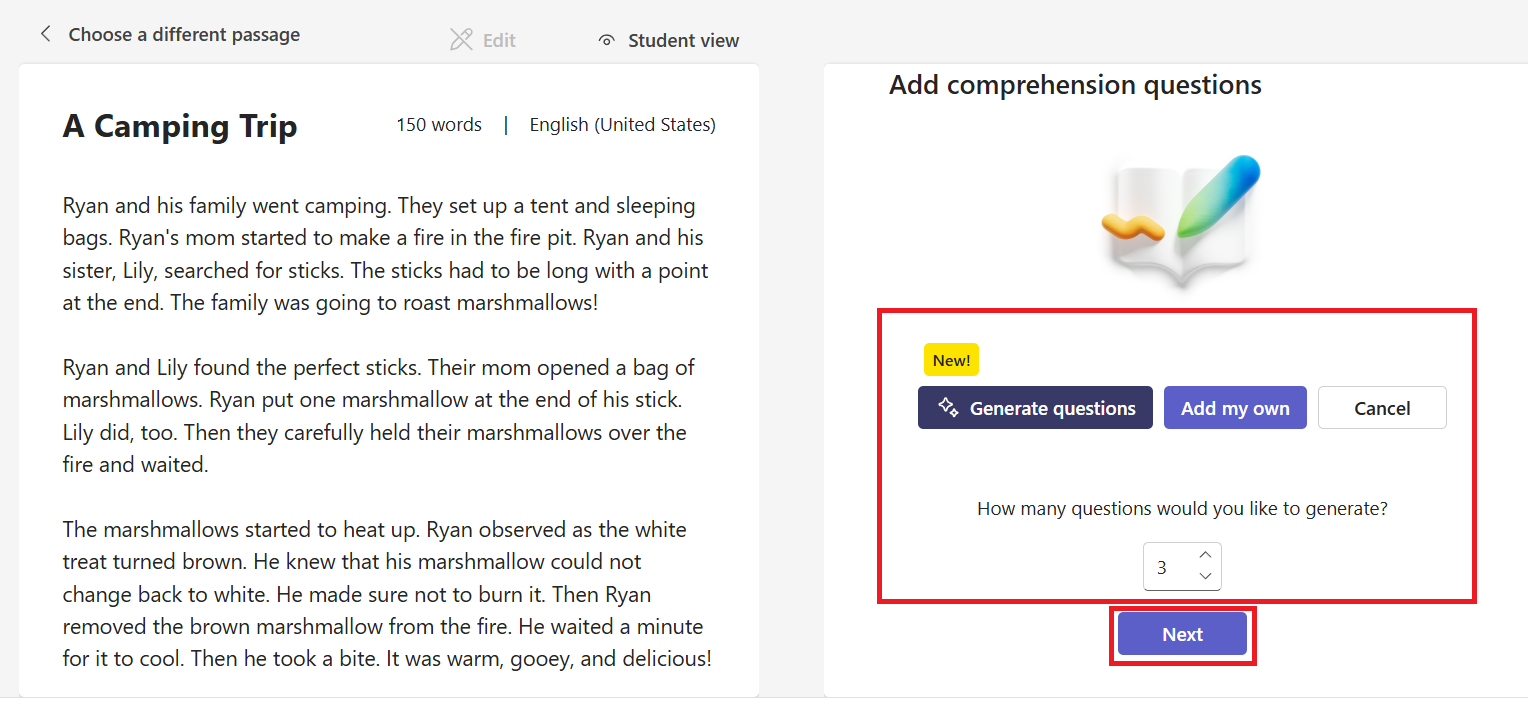
If you choose to create your own questions, a quiz template will be provided for you to enter them. To display the questions alongside the reading passage for students, select the corresponding check box.
Review the generated questions and make any necessary adjustments to ensure they are accurate and appropriate for your students. To display the questions alongside the reading passage for students, select the corresponding check box. When you are satisfied with the questions, click Next.
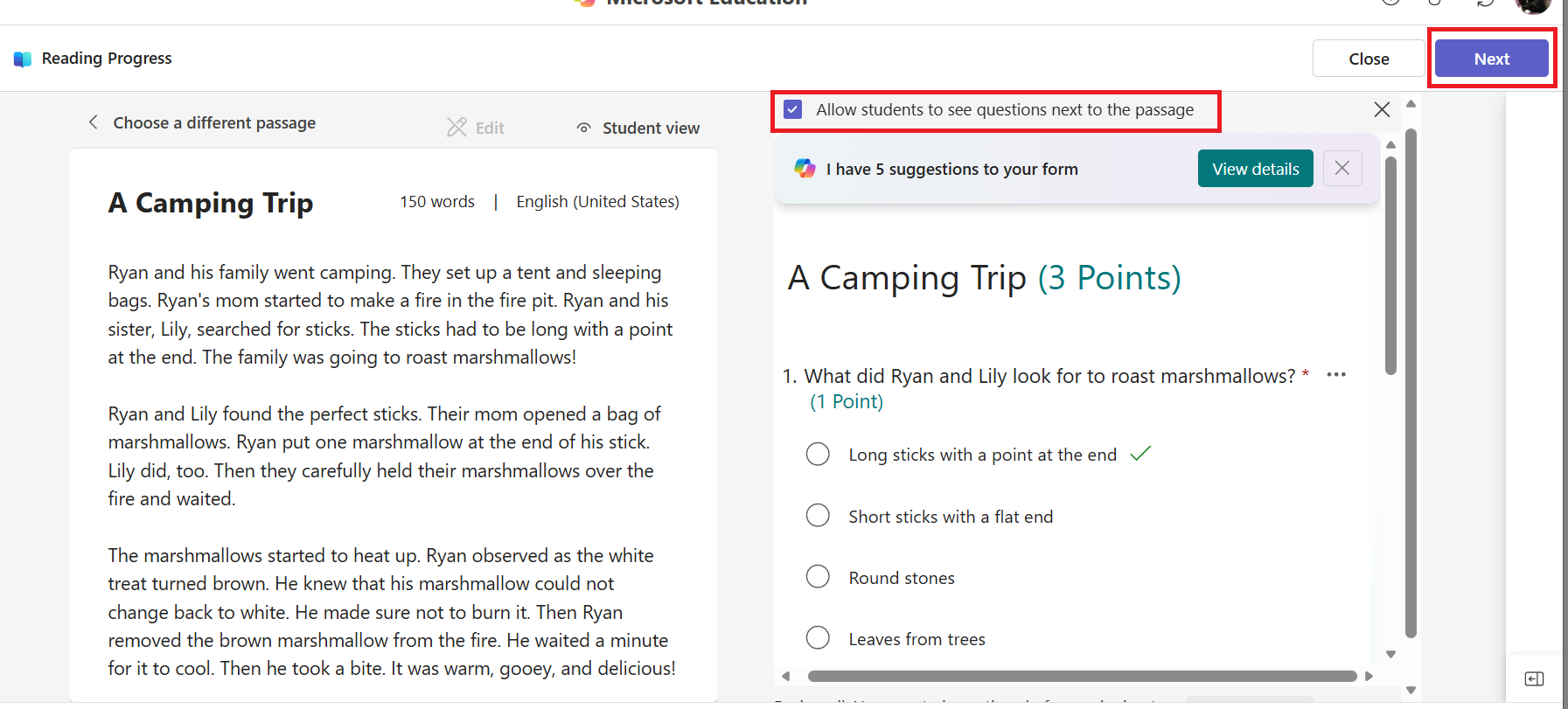
On the next screen, enter a title for your assignment, instructions for the students, a Due Date, and a number of points (this is a required field). Then click Save.
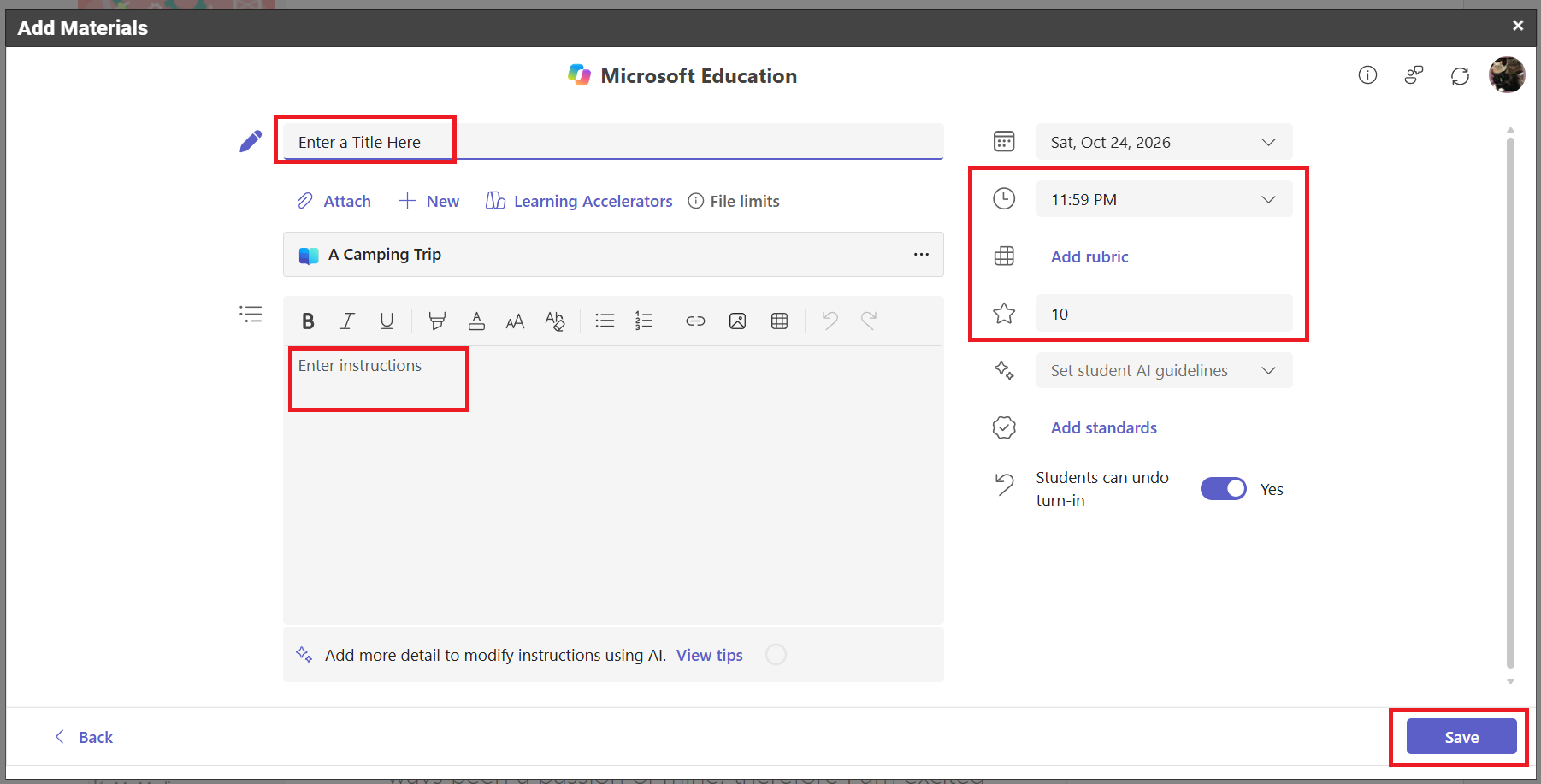
The assignment will now appear in your Schoology Course.

Viewing Data in Reading Progress
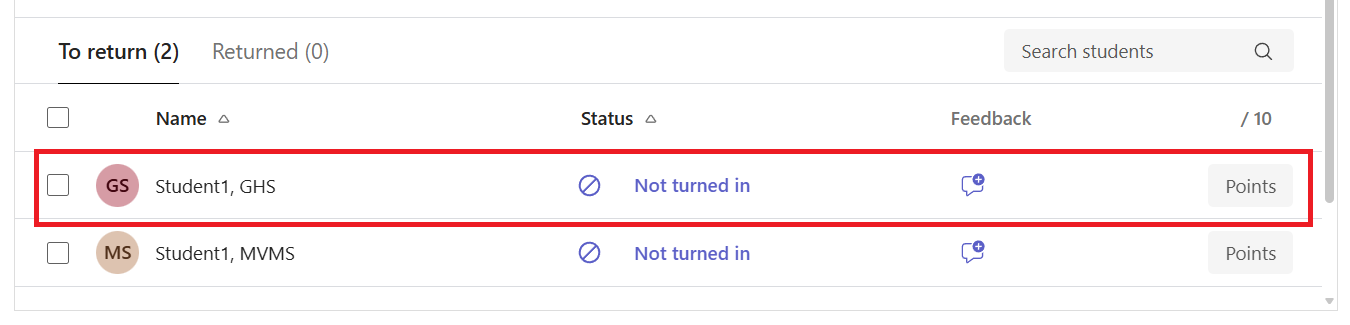
1. Click on the assignment in your Schoology Course.
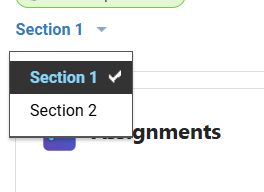
If you have Linked Sections, click on the Section drop-down menu to pick the Section you want to view.
Once students have completed the assignment, you can click on a student to view their data.