Copilot for Educators
Staff have access to Copilot. This tool utilizes AI to produce intelligent search capabilities. It can provide information and insight, create images, and write content such as summaries, essays, speeches, vocab cards, tests, lesson plans, study guides, and much more. To utilize the Copilot, please follow the instructions below. Please also view the attached PDF on crafting prompts.
1. Open Microsoft Edge.
2. Go to https://m365.cloud.microsoft/apps.
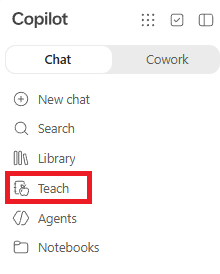
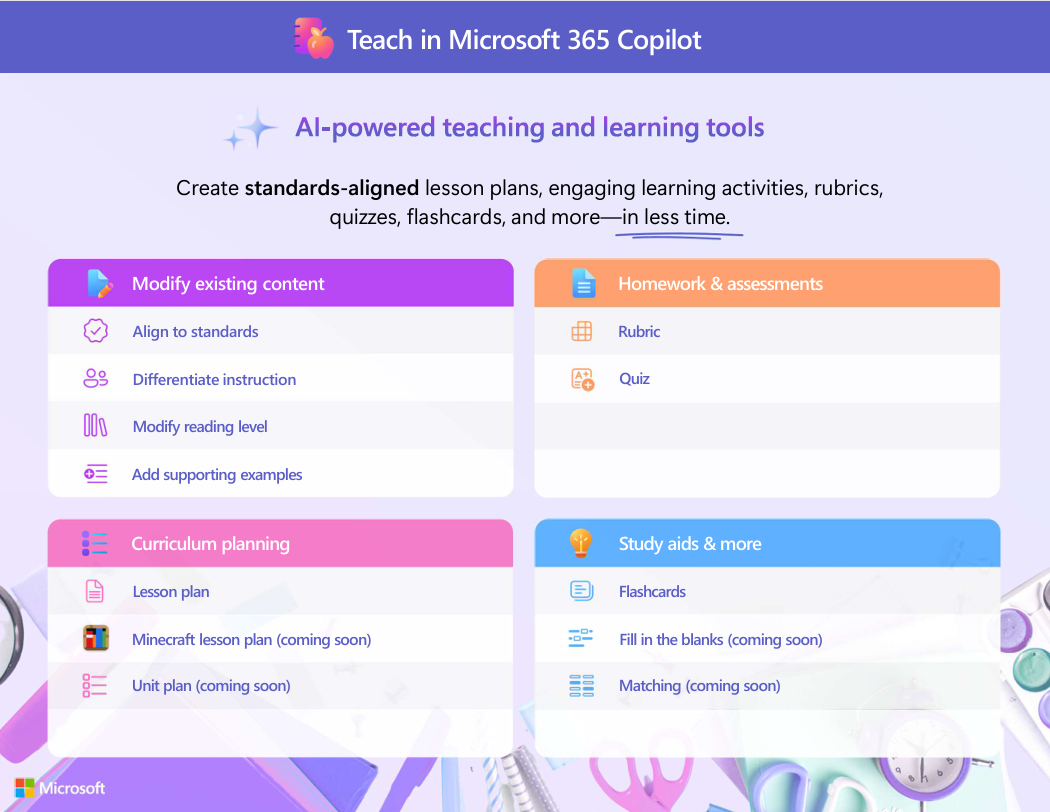
3. Click + New chat on the left side menu to use Copilot Chat. You can also click on Teach to go into Copilot's teaching tools (if this is your first time going to Copilot Teach, you will see a Getting Started and Take a Tour pop up that you go just x out of).
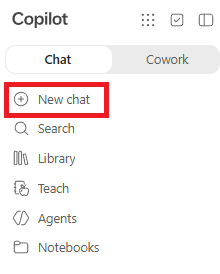
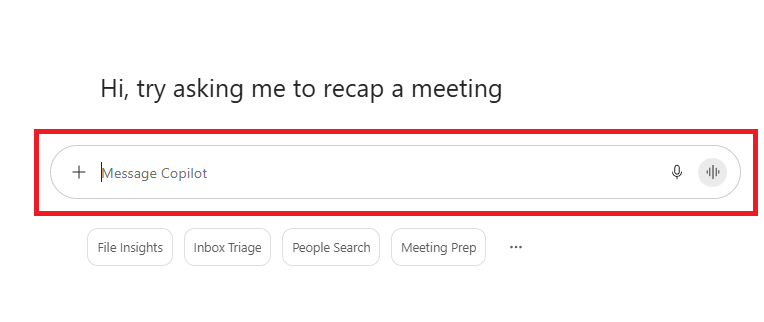
4. If you clicked on + New chat, in the Message Copilot text box, type the task you want Copilot to perform. Try to be as specific as possible.
5. To copy what Copilot created go to the bottom of the response and click on the Copy icon. This will copy the created content so you can paste into another application.
To export the created content into Microsoft Word, click the 3 dots, next select Export to and then click Word. This will export the content into a Word document.
*Please note that sometime symbols such as certain math equations may not download correctly, so please check the document and correct any errors prior to saving it.
6. If you clicked on Teach from the left side menu, you will see options of tools you can use Copilot to create, as well as the history of past content created.
7. Click on the teaching tool you wish to create and follow the prompts to create it. Click Generate when you are ready to create the content.
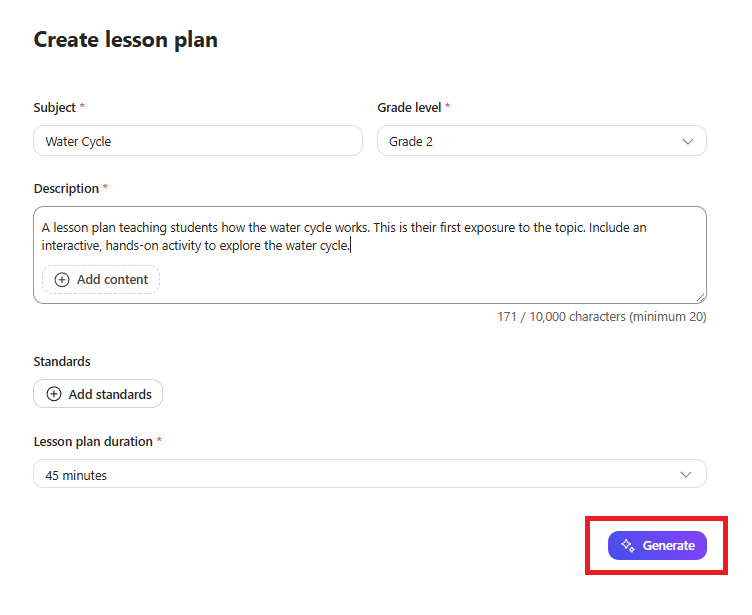
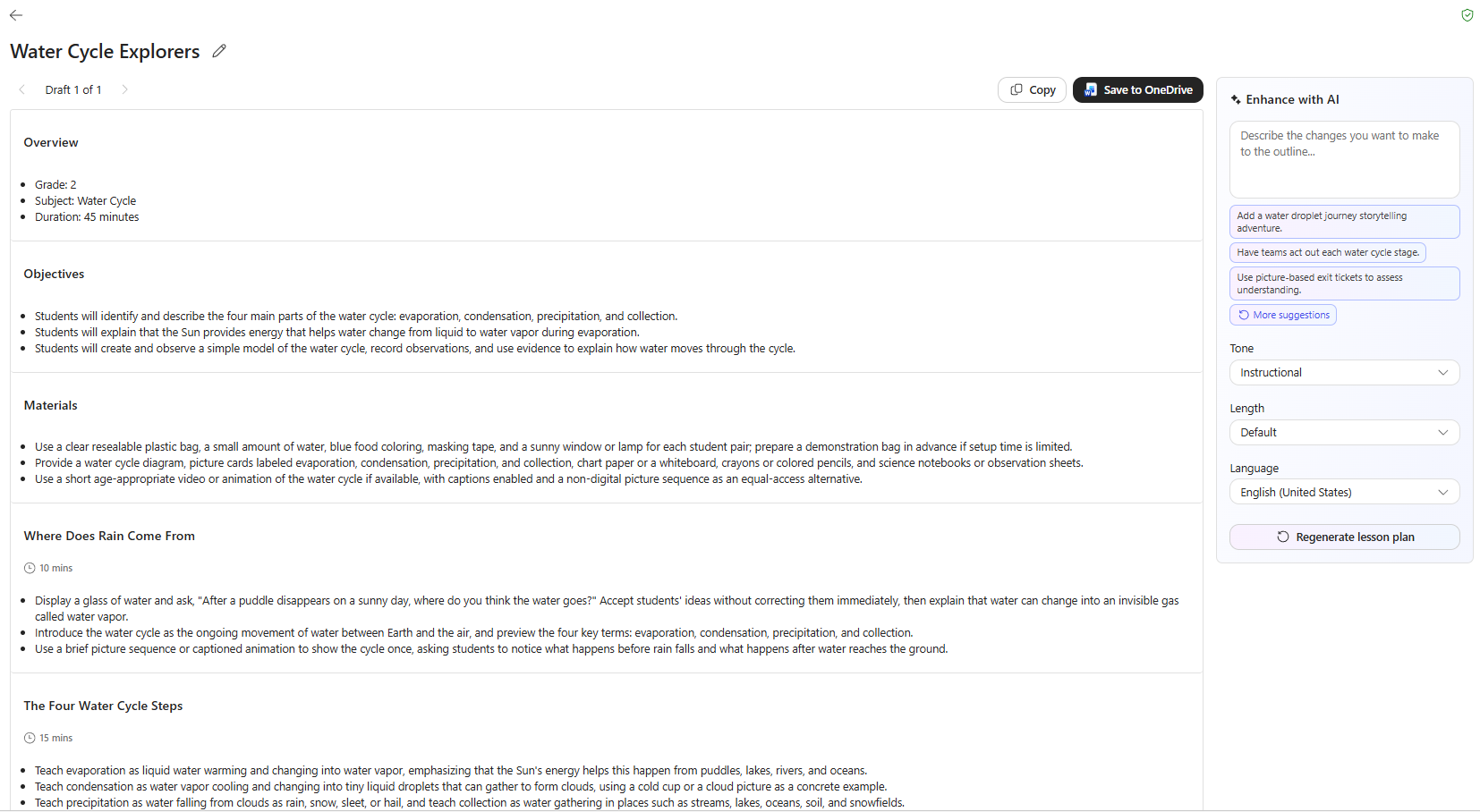
You can adjust details and regenerate the content as you go.
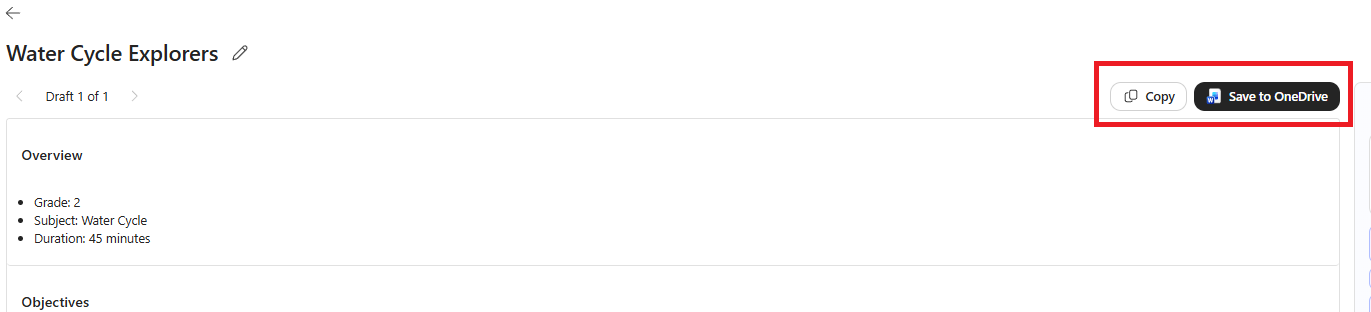
8. Click Copy or Save to OneDrive to save the created content.
Examples of How Copilot Can Be Used
Here are a few examples of what Bing Chat can do:
Create Assessments


Develop Essay Prompts
Create Vocabulary Tables to be Used to Make Flash Cards


Write Lesson Plans

Create Worksheets
This will then give you options for the blank map:

Provide Diagrams
This sometimes provide prompts to click on the further enhance the results.
As the image is generating, it will display an unrelated picture stating the image is generating.

Once the image is complete, it will appear or provide image options.
Summarize Stories
Draft Email Messages
Generate Images
Educators have the ability to create 15 images each day. Once you reach your limit of "boosts," you will need to wait 24 hours for it to refresh. To generate images:
1. Type in the image you want to create, using as much detail as possible.
2. Once the image options appear, choose an image to use, or click on the options provided to change the image. You can also type in the changes you want to make.
3. Repeat this process until you have an image you want to use.
4. Click on the image and once it opens, right-click on it and select Copy image and paste it where you want the image or click Save image as and select where you want to save the image to.