
Importing Files into Your Canva Account
Files can be importing into your Canva account. Please follow these directions:
1. Log into Schoology and click into one of your Courses.
2. Click on Canva for Education from the left side bar.
3. Click Continue.
This will auto log you in.
If you get a message that asks how you want to log in, click Continue with Microsoft.
This should also auto log you in.
If it prompts you to log in, use your Microsoft 365 username (username with @sau19.org - DO NOT use your email that has firstname.lastname) and your normal password. Once logged in, you can design projects in Canva.
4. Click on Create on the left-hand side and the select Upload from the list.
5. Drag your file into the Upload box or you can click the Upload files or Upload folder to select specific files or folders to upload.
6. You can click on the file under Recent designs once it has finished uploading.
Exporting Files from Your Canva Account
Files can be exported from your Canva account. Please follow these directions:
1. Log into Canva and open the file you want to download.
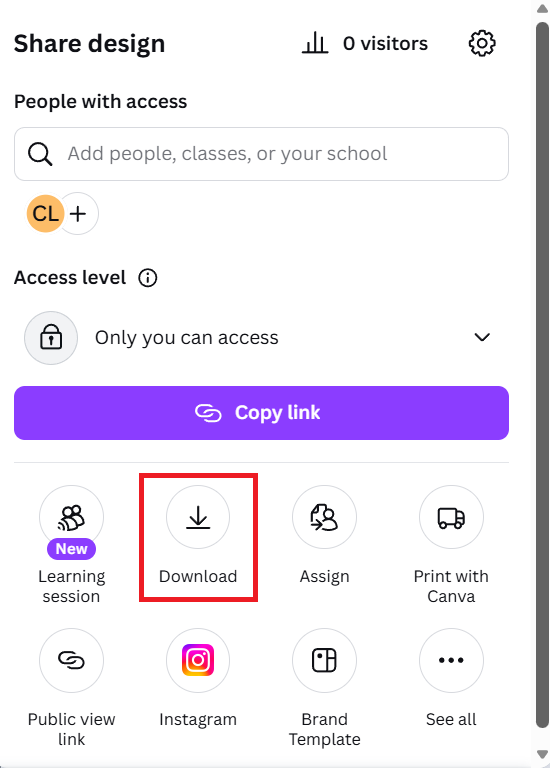
2. Click Share in the upper right-hand corner.
3. Click the arrow to the right of Download.
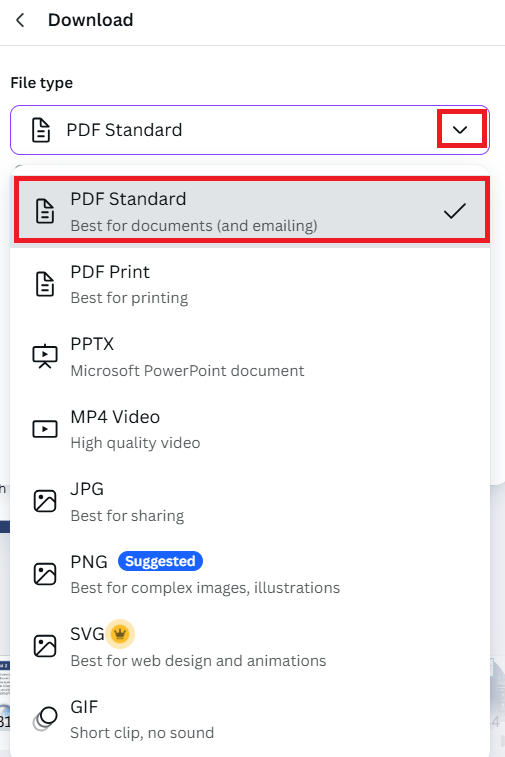
4. Click the drop-down arrow under File type and select the desired file download type. The recommended file type is PDF Standard.
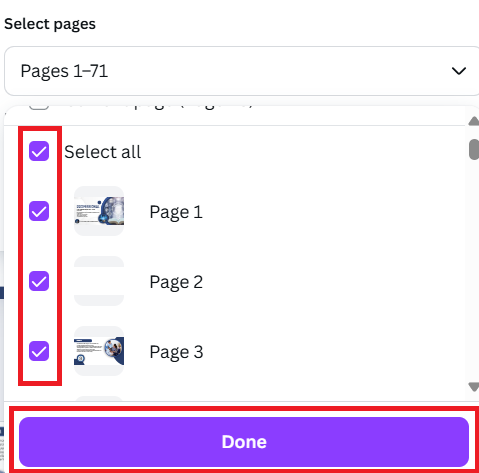
You can select to print all pages in the document or just specific pages. It will default to all pages. To select specific pages, click on the Select pages drop-down menu and check the boxes next to the page number you want. Then click Done.
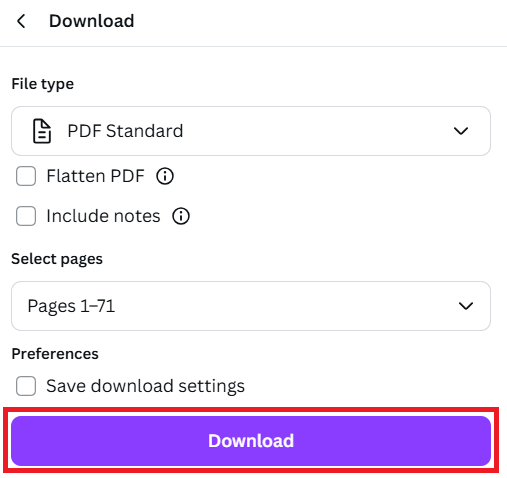
5. Click Download.
6. Locate you file in your Downloads folder on your device.